
Google Merchant Center Product Data: How Shopify Stores Keep Their Feed Clean (and Their Account Safe)
Nobody gets suspended over one bad product. A single disapproval is routine, almost boring. Stores get in real trouble when the feed quietly rots: a sale ends on the website but not in the feed, a variant URL points at the wrong price, thirty products drift out of sync, and Google stops trusting the catalogue as a whole.
That slow rot is the third pillar of Merchant Center trust. Your policy pages prove the business is real. Your suspension response is the process when things go wrong. Product data is the everyday accuracy that keeps things from going wrong in the first place, and on Shopify it is mostly automated, which is exactly why nobody watches it.
This guide covers what the feed actually is, the attributes Google checks, the specific ways Shopify feeds break, and the ten-minute routine that keeps yours clean.
What a product feed actually is
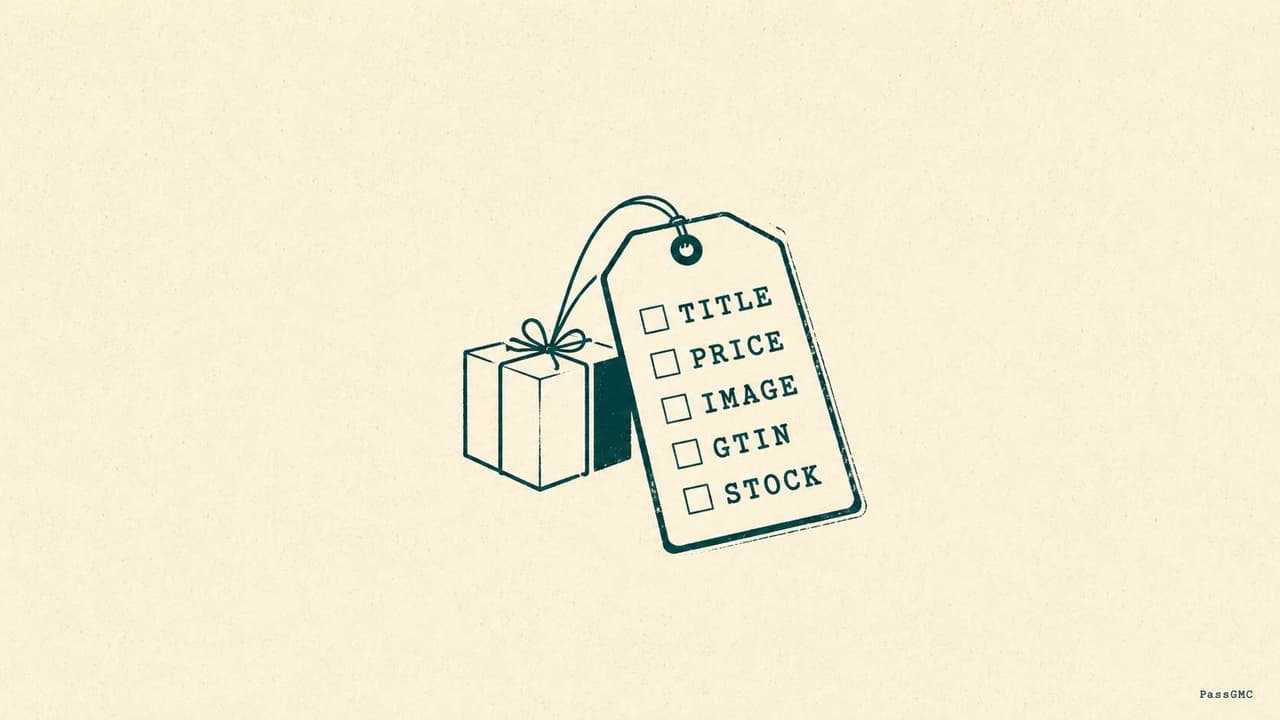
Your products do not appear on Google by magic. The Google & YouTube app reads your Shopify catalogue and submits it to Merchant Center as structured data: one record per product, each made of attributes. Google's product data specification defines them, and a small set is required for every product:
Attribute | What Google uses it for | Where it comes from in Shopify |
|---|---|---|
ID | Tracking each product across updates | Generated from the product/variant |
Title | The headline of your listing, and matching | Product title |
Description | Relevance and matching | Product description |
Link | The landing page Google sends buyers to, and crawls | Your product page URL |
Image link | The listing image, checked against image rules | Featured product image |
Availability | Whether the listing shows at all | Inventory status |
Price | What the buyer is promised, checked against your page | Product/variant price |
Beyond those seven, brand is required for nearly all new products, and identifiers (GTIN or MPN) follow rules of their own covered below. Every one of these attributes also has an exact format and character limit, which we walk through field by field in our full guide to the product data specification.
The mental model that matters: the feed is a set of promises. Every attribute claims something about what a buyer will find when they click. Google crawls your product pages and checks the promises, which is why the spec's own wording for price and availability is that they must match your landing page, your structured data, and your checkout. Three places, one truth.
How products get disapproved (and when it becomes an account problem)
Enforcement starts at the item level. A product whose data breaks the rules gets disapproved: it stops showing, the rest of the catalogue carries on. Annoying, contained.
Two attributes get harsher treatment. Google's product data quality documentation states that price and availability mismatches between the feed and the landing page result in preemptive item disapproval. Google does not wait to be sure about money and stock. If the crawler sees a different price than the feed promised, the item comes down first and you sort it out after.
The account-level danger is accumulation. The same documentation describes what happens when product data problems look systematic rather than isolated: a warning email, a 28-day window to fix the data, and potential account suspension if it is not fixed. That is the bridge between this guide and the suspension guide: enough small mismatches, left long enough, stop reading as mistakes and start reading as a store whose listings cannot be trusted.
The rhythm of fixes is also documented: after you correct the data, reviews typically take 3 to 7 business days, there is an automatic review at the 28-day mark, and you can request one courtesy review earlier if you have fixed everything.
Price and availability: where most feeds break
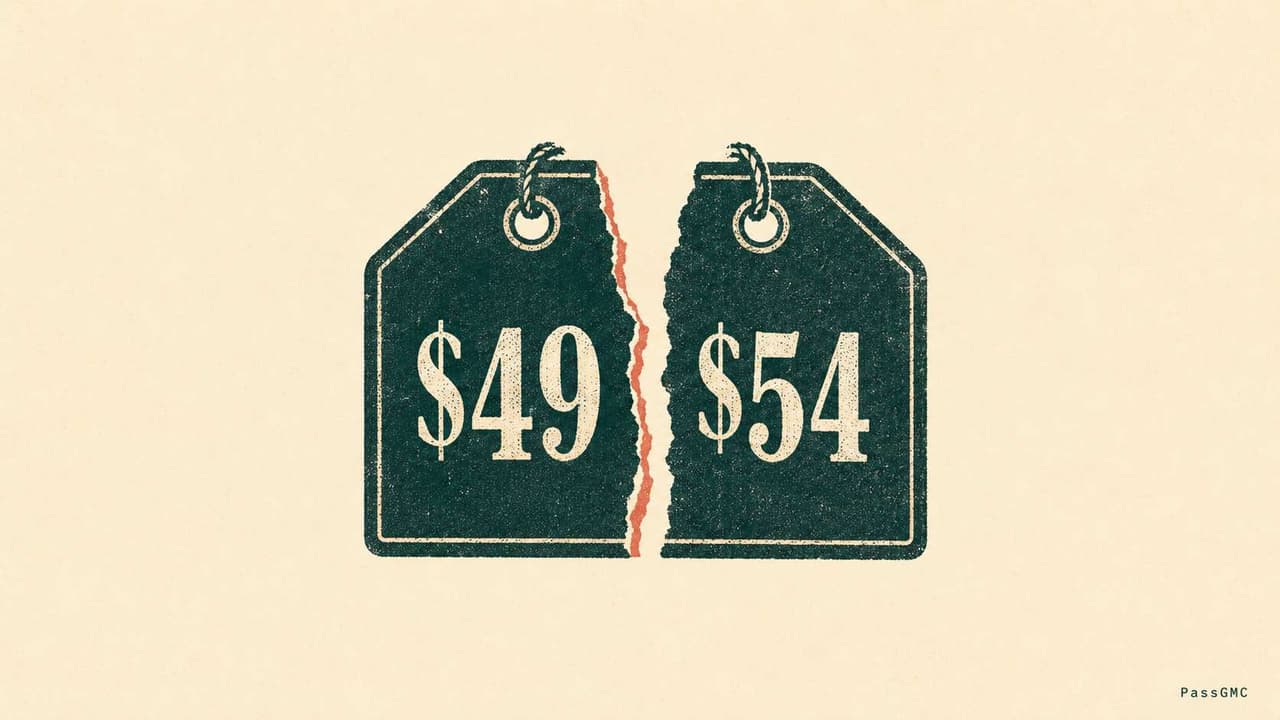
Almost every Shopify feed problem worth worrying about is a price or availability mismatch, and almost all of them are mechanical, not careless. These are the four patterns:
Mismatch pattern | Why it happens on Shopify | The fix |
|---|---|---|
The variant URL trap | The feed submits a product with many variants, but the link points at the default variant's page. Google crawls it and finds the default variant's price, not the submitted variant's | Confirm variant links resolve to the exact variant, and that each variant's feed price matches its own page price |
The strikethrough trap | A sale page shows the old price crossed out beside the new price (Shopify's compare-at price). A crawler reading the page can pick up the wrong number, especially when theme markup is loose | Keep compare-at styling clean in your theme, and check sale products' listings during promotions |
Sale timing drift | The website price changes the moment a sale starts or ends, but the feed updates on the sync's schedule, not yours | Start and end promotions with the sync delay in mind; spot-check flagship products the day a sale flips |
Stock flicker | A product sells out on the site while the feed still says in stock (or the reverse) | Let inventory tracking drive availability, and avoid manual overrides that the sync does not see |
The common thread: your website moves in real time, the feed moves on a schedule, and Google occasionally reads the page in between. You cannot remove that gap entirely. You can keep it small (change prices calmly, not constantly) and you can stop stacking risks on top of it (loose theme markup, manual stock edits).
One more requirement hides here: if you ever sell on preorder or backorder, the spec requires an availability date attribute alongside that status. Shopify stores rarely need it, but if you run preorders through an app, confirm the date is actually being submitted.
GTINs, brands, and identifiers
Identifiers tell Google exactly which product you are selling, so it can match your listing against the same product everywhere else. Google's GTIN documentation sets three rules that cover nearly every store:
If the manufacturer assigned a GTIN (the barcode number), submit it. Google marks it strongly recommended, and products missing or carrying incorrect GTINs may get limited visibility, because Google cannot confidently match them.
If a product genuinely has no GTIN, do not submit one at all. Submit brand and MPN instead. This is the normal, compliant path for private-label and own-brand products.
Never guess. Google's own wording: only provide a GTIN if you are sure it is correct; when in doubt, do not provide one. A made-up or borrowed barcode is far worse than none, because it claims your product is something it is not, and that is a mismatch on the attribute Google uses for identity itself.
In Shopify, the GTIN lives in the variant's barcode field and brand in the vendor field. The classic own-brand mistake is pasting a supplier's barcode onto your rebranded product: that barcode identifies their product, not yours. Leave it out and let brand plus MPN do the work.
Brand itself is required for nearly all new products under the spec, with narrow exceptions (books, movies, music recordings). For an own-brand store, your brand is simply your store's brand name, used consistently.
Images that pass review
Image rules are strict because the image is the listing. Two requirements from the current spec and quality documentation are worth pinning to the wall:
Size: the spec now lists a minimum of 500 by 500 pixels, with enforcement beginning 31 January 2027. Treat it as today's standard rather than a future problem: anything you upload now at less than 500 pixels square is pre-booked for disapproval. Larger is better anyway; small product images cost conversions long before they cost compliance.
Cleanliness: in the spec's words, don't include promotional text, watermarks, or borders. The quality documentation goes further: listings require an unobstructed view of the product without additional promotional elements. Every "20% OFF" badge, watermark, or logo overlay baked into a product image is a disapproval waiting for a crawl. Promotions belong in prices and titles of sales, never inside the image file.
Two quieter image habits pay off: make sure each variant's image shows that variant (the blue shirt's listing should not show the red one), and never use a manufacturer's lifestyle collage or logo card as the main image. Plain product, honest angle, clean background.
Titles and descriptions that match reality
Titles and descriptions are matching data, not ad copy. Google reads them to decide when your product appears; buyers read them to decide whether the click was honest.
The rules that matter are the boring ones. The title should say what the product is, in the words a buyer would use: brand, product type, and the attributes that distinguish it (colour, size, material). The description should describe the actual product, accurately. Both should agree with the landing page: a feed title promising "organic cotton" while the product page says polyester blend is a mismatch on the page Google checks.
What to avoid is equally boring: stuffing ("BEST dog bed dog beds for dogs pet bed SALE"), promotional phrases in titles, and claims the product page does not back. If a phrase would look out of place printed on the product's box, it probably does not belong in the title either. All of this sits under Google's editorial and professional requirements.
The Shopify sync layer
On Shopify, all of the above flows through the Google & YouTube app, which syncs your products to Merchant Center automatically. Three habits keep the layer honest:
Know where the status lives. The app shows each product's sync and approval state. When something is disapproved, the reason shown there is usually specific (price mismatch, image issue, missing identifier), and it is the fastest diagnosis you will get.
Give changes time. Edits propagate on the sync's schedule, and fixes then wait on Google's review rhythm (the 3-to-7-business-day window covered earlier). The practical rule: make data changes calmly and check back, rather than editing repeatedly because nothing seems to happen in the first hour.
Recognise when you have outgrown the built-in sync. For most stores it is exactly right. Stores with thousands of SKUs, complex variant logic, or multi-country feeds sometimes move to a dedicated feed app for finer control. That is an optimisation decision, not a compliance one; the rules in this guide apply identically either way.
The ten-minute monthly feed routine

Feed health is maintenance, not a project. Once a month, alongside the policy consistency habit:
Check | What you are looking for |
|---|---|
Disapprovals list | Open the Google & YouTube app's product status: read every disapproval reason, fix the data, not just the symptom |
Price spot-check | Pick your five best sellers: feed price = product page = checkout, per variant |
Availability spot-check | Anything sold out on-site still showing in stock in the feed, or vice versa |
Sale aftermath | If a promotion started or ended recently, check those products specifically |
Image audit | New products since last month: 500 pixels square or better, no text overlays, right image per variant |
Identifier audit | New products: real GTINs where they exist, brand + MPN where they do not, nothing guessed |
Ten minutes, monthly, and the account-level failure mode (accumulated systematic mismatch) simply never gets the chance to accumulate.
Check your feed before Google does
Everything in this guide is checkable from the outside, which is exactly how PassGMC checks it. The scanner reads your product pages the way Google's crawler does: price parity including the strikethrough trap, availability signals, image problems, and the consistency between what your listings claim and what your pages show, across 46 checks, with exact Shopify admin paths for every fix. The free headline scan takes about a minute and needs no sign-up. Run it before Google's next crawl runs its version.
Frequently Asked Questions
Do I need GTINs for all my products?
Submit a GTIN wherever the manufacturer assigned one; Google marks it strongly recommended and products with missing or wrong GTINs may get limited visibility. Products that genuinely have none (own-brand, handmade) should submit brand and MPN instead, and you should never guess or invent a GTIN.
Why does Google say my price does not match?
Google crawled your product page and found a different price than your feed submitted. On Shopify the usual causes are variant links resolving to the wrong variant, a compare-at strikethrough price being misread, or a sale changing the site before the feed synced. Price and availability mismatches are the two issues Google disapproves preemptively, so fix them first.
How long until fixed products are reviewed again?
Per Google's documentation, reviews after a fix typically take 3 to 7 business days, with an automatic review at the 28-day mark of a warning and one courtesy review you can request earlier. Fix everything first so one review is all you need.
Want your whole feed checked against all of this in about a minute? Run a free PassGMC scan and see your readiness score before Google's next crawl.
See where your store stands, free.
Run a free headline scan and get your readiness score in about a minute. No sign-up needed to see it.
Scan my store