
How to Fix Google Merchant Center Editorial and Professional Requirements: A 2026 Step-by-Step Guide
Your products stopped serving, and the reason field says "editorial and professional requirements." It is one of the least self-explanatory labels in Merchant Center, and it arrives with a deadline attached: for most violations, Google sends a warning email and gives you "7 or 28 calendar days to fix your issue" (Google Merchant Center Help, Editorial & professional requirements, retrieved 2026-08-22).
The cost of getting this wrong is not one disapproved product. It is a failed review, a burned appeal, and in the worst case an account-level enforcement action that takes far longer to unwind than the original fix would have.
If the wording you are looking at is "This doesn't meet editorial guidelines" rather than "editorial and professional requirements", you are reading the Google Ads version of the same family of rules. Both are covered below.
By the end of this guide, you will know which of Google's three editorial policies actually governs your account, exactly what Google checks, and the specific Shopify admin path for every fix. Every requirement below is quoted from Google's own documentation rather than paraphrased from secondary sources.
Key Takeaways
Google publishes three near-identically named editorial policies. They cover Shopping ads, free listings, and promotions separately. Reading the wrong one is the most common wasted afternoon.
The policy covers far more than product text. Broken links, placeholder pages, blocking pop-ups, a disabled back button, missing contact details, and an incomplete returns policy all fail it.
You get 7 or 28 calendar days to fix, and per Google you "may only have one chance to disagree with the issue." Fix every instance before requesting a review.
Most Shopify failures come from sync, not typing: what Google reviews is what reached the feed, not what your theme displays.
What does "editorial and professional requirements" actually mean?
It is Google's standard for whether your listings and your website look and behave like a professionally operated shop. Google requires that Shopping ads "meet high professional and editorial standards," that promotions are "clear and professional," and that they lead to products that are "relevant, useful, and easy to interact with" (Google Merchant Center Help, retrieved 2026-08-22).
Merchants commonly search for this as "editorial and professional standards for product data." Google's own label is "requirements." Same rules, different wording.
The policy is best understood as three questions Google is asking about your store:
Does the text read as though a human wrote it properly?
Does the website actually work?
Can a customer tell who they are buying from and what happens if they want a refund?
Fail any one and, in Google's words, "Products that don't comply with our policies may be disapproved and won't be eligible to serve."
This is distinct from feed accuracy, which is governed by the product data specification and covered in our guide to Google Merchant Center product data. We break that specification down attribute by attribute, with the exact format and character limit for each one, in our product data specification field guide. Editorial requirements are about presentation and credibility, not attribute correctness.
Which of Google's three editorial policies applies to you?
Google maintains three separate editorial pages with confusingly similar names, and each governs a different surface. Identify yours before you change anything.
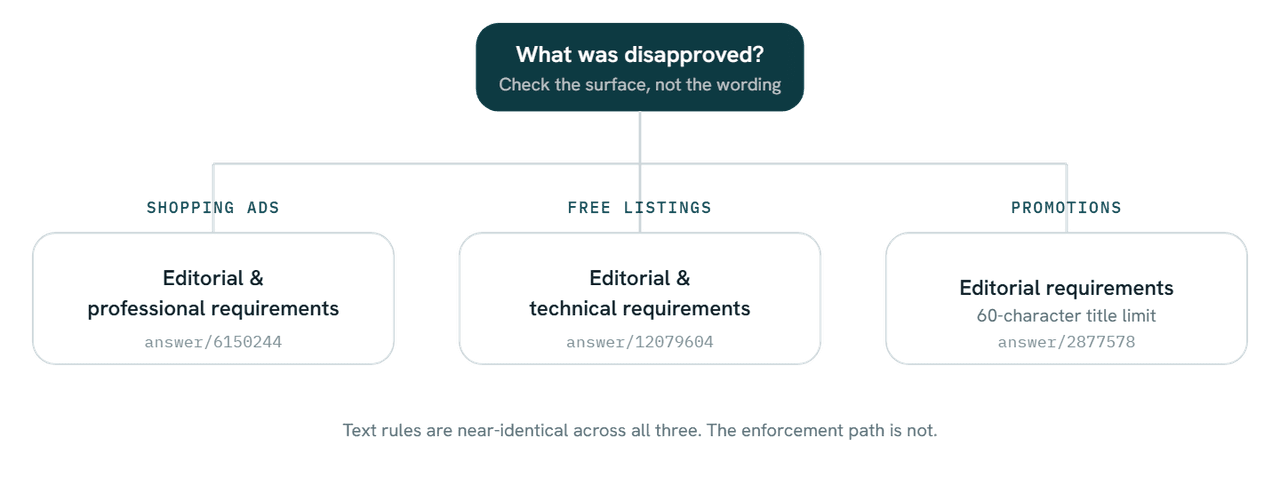
The Shopping ads page states its own scope directly: "This policy applies to Shopping ads and local inventory ads with merchant hosted local store front." The editorial and technical requirements page governs free listings, and editorial requirements for promotions governs promotion titles, including a 60 character limit.
The text rules overlap almost entirely, so fixing for one surface fixes the others. What differs is where the disapproval appears in Merchant Center and how you request the review.
What exactly does Google check?
Everything below is drawn from the Shopping ads policy page. The right-hand column translates each requirement into what it looks like on a real Shopify store.
Google's requirement | What failure looks like in practice |
|---|---|
Commonly accepted spelling and grammar | Block-capital titles, run-on descriptions, typos in the product name |
Correct punctuation, capitalisation, spacing | "Flowers!!!", "fllllowers", "FLOWERS", "FlOwErS" (Google's own four examples) |
No excessive or gimmicky numbers, letters, symbols or emoji | Star symbols between letters, spaced-out lettering, emoji in titles |
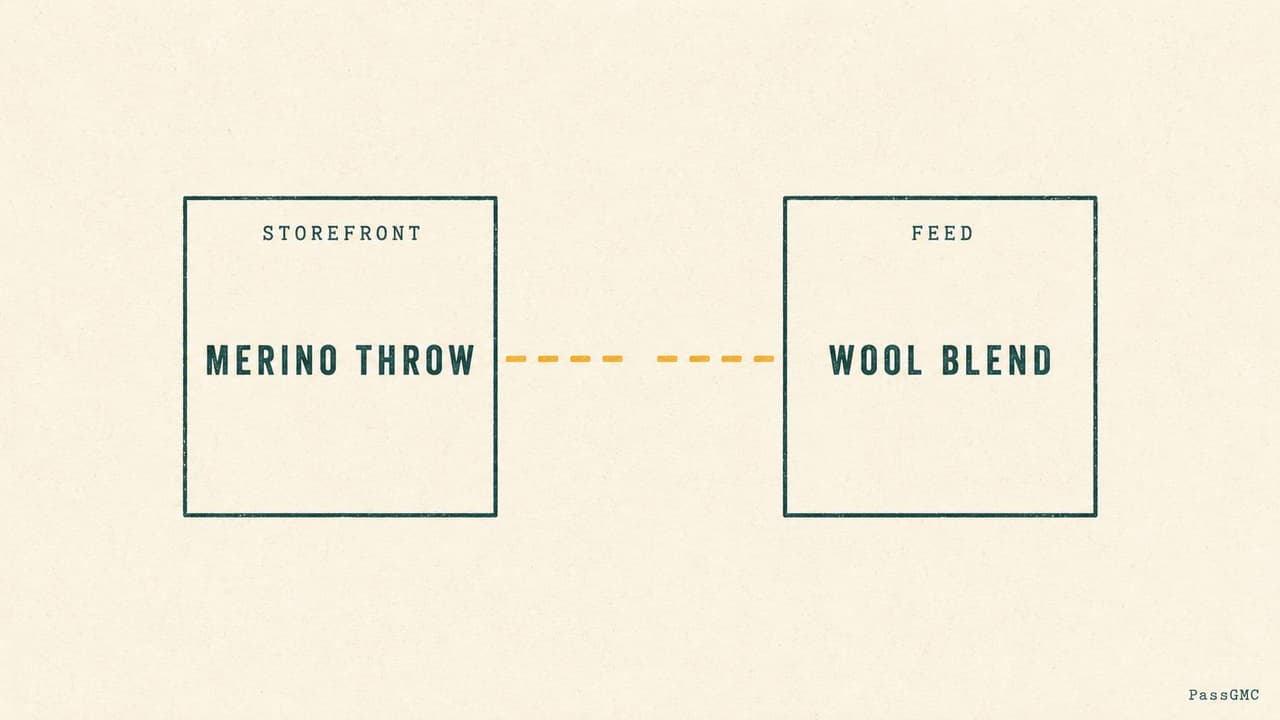
Titles and descriptions match the landing page | Feed says "Merino Wool Throw", the page says "Wool Blend Blanket" |
Details accurate and unique per product | Twelve variants sharing one supplier paragraph |
Fully functional website | Broken links, 404s, menu items pointing nowhere |
No placeholder or templated content | "Lorem ipsum", "Add your description here", stock theme imagery |
Not under construction, no error messages | A collection page that was never populated |
Loads quickly on common browsers and devices | A theme that stalls on mobile |
No login required to view content | Products behind an account wall |
No pop-ups or interstitials blocking content | A discount modal that cannot be dismissed on a phone |
Browser back button works normally | Exit-intent scripts that trap the visitor |
No forced app download | "Download our app to continue" |
Contact information visible on site | No phone, email, address or contact form |
Verified business information in Merchant Center | Business details never completed or verified |
Complete, clear return, refund or cancellation policy | A returns page that says "contact us for details" |
Autorenewal and billing notification disclosed | Subscription products with no cancellation terms |
Safe, uncompromised domain | Sites flagged as hacked may be blocked |
The free listings policy adds character-substitution and spacing tricks to the banned list, so "f1owers", "fl@wers" and "f l o w e r s" fail as well.

Step-by-step: how to fix an editorial disapproval
Step 1: Identify the flagged items, not the whole catalogue
Merchant Center names the specific products and the specific policy. Read that list before editing anything. Rewriting an entire catalogue on a guess wastes the clock you are running against.
Step 2: Fix the text in Shopify
For each flagged product: from your Shopify admin go to Products, click the product name, edit the Title and Description, then Save.
Three text problems account for most disapprovals:
Promotional language in titles. "SALE", "50% OFF", "FREE SHIPPING", "Buy now", "Limited time offer". Discounts belong in Google's promotions system, which has its own 60 character title rules, not in the product name.
Titles doing a description's job. The free listings policy states directly that titles should not function as description fields.
Duplicated supplier copy. Google requires details to be "accurate and unique for each product". An imported catalogue sharing one manufacturer blurb across every item is generic content.
Step 3: Fix every other instance of the same problem
This is the step that decides whether your review passes. If three titles were flagged for capitals, another twenty probably have them. A review that discovers fresh violations of the rule you just claimed to fix does not go well.
Step 4: Walk your storefront as a customer
Open the site in a private window on a phone. Click every footer link. Try to dismiss every pop-up. Press the back button once. Open the returns page and read it as somebody who wants their money back.
This is the review Google performs, and it catches the failures that have nothing to do with your feed.
Step 5: Fix trust and policy gaps
Shopify's Google channel requirements state that you must add a Refund Policy and Terms of Service and that "These policies must be available in your footer menu." For contact details, you need "at least one contact method such as email address, phone number, mailing address, or a contact form."
Two admin paths cover nearly all of it:
Settings > Policies for refund, terms, and privacy
Settings > General for store contact details and business address
Having a policy is not the same as having an acceptable one. Our guide to the five policy pages Google reads covers what each page must actually say.
Step 6: Confirm the fix reached the feed, then request the review
Most people skip this, and it is the single most common cause of a failed re-review. Google reviews what arrived in Merchant Center, not what your theme renders. Confirm the updated title and description actually synced before requesting anything.
Then request the review. Per Google's review documentation, "You may only have one chance to disagree with the issue." Spend that on a listing that genuinely does not breach the rule, never on one that does.
How long does the review take?
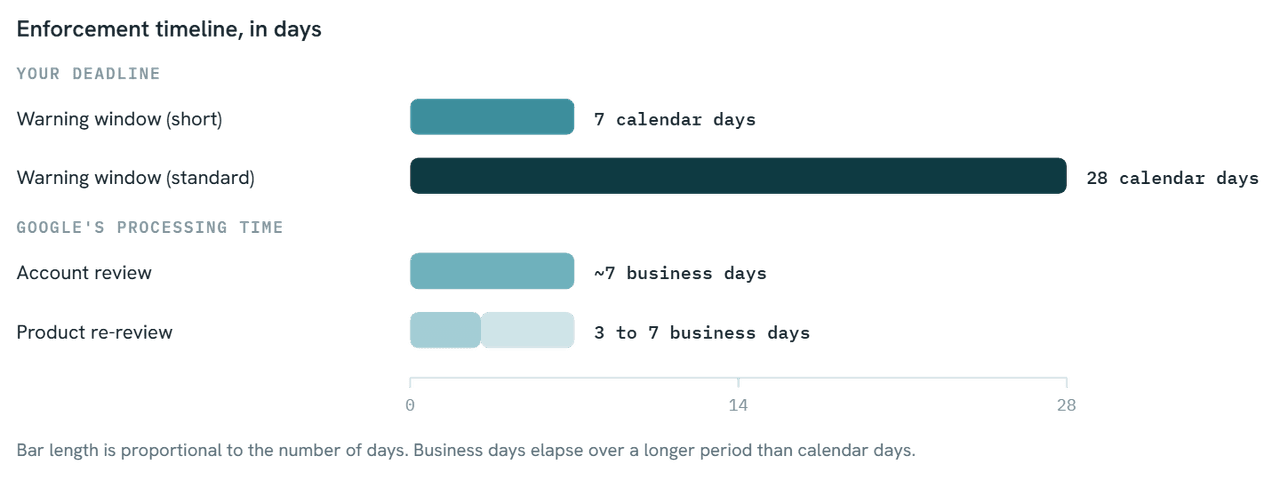
Google states that account reviews "typically take 7 business days, but may take longer for complex reviews." Post-fix product reviews under the product data quality rules typically take up to 3 to 7 business days.
Plan on the fix taking an afternoon and the verification taking a week. Left unresolved, systematic non-compliance is the pattern that escalates from product disapprovals to an account-level suspension, which is a materially longer road back.
Where Shopify stores trip this specifically
Generic advice misses the platform-shaped failures. These come from how Shopify syncs, not from anything you typed.
Cause | Why it happens on Shopify | Where to fix |
|---|---|---|
Feed title differs from page title | The Google channel can send a different field than the one the theme displays | Products, then verify in Sales channels > Google & YouTube |
Capitals or promo text in titles | Marketplace merchandising habits carried across | Products > Title |
Duplicate variant descriptions | Bulk import or dropshipping apps write once to many | Products > Description |
Placeholder theme pages still live | Demo content from install was never removed | Online Store > Pages, plus navigation menus |
Policies not in the footer | Written but never added to the footer menu | Settings > Policies, then footer navigation |
No visible contact method | Details sit in Merchant Center but not on the storefront | Settings > General, plus a contact page |
Intrusive pop-up apps | Conversion apps default to aggressive mobile behaviour | The app's own settings, tested on a real phone |
If your product page looks correct and you are still disapproved, check the sync row first.
Prevent it: the monthly ten-minute check
Editorial problems return through drift. A "SALE" prefix added in November survives into March. An app is installed, and its mobile behaviour is never tested. A new supplier import brings shared descriptions.
Once a month:
Sort products by recently updated and read the ten newest titles aloud. Capitals, symbols and promo words are obvious when spoken.
Open the storefront in a private window on a phone. Close every pop-up. Press back.
Click every footer link.
Read the returns page as somebody who wants a refund.
Check your listings before Google does
Almost everything in this policy is visible from outside your store, which means it is checkable before a reviewer looks.
PassGMC reads your storefront the way Google's review does and runs 46 checks across policies, trust signals, risky wording, pricing and urgency claims, and product data consistency. Editorial issues come back as specific findings with the exact wording that triggered them, ranked by impact, each with the Shopify admin path to fix it.
The headline readiness score is free and needs no sign-up. If you are inside a 7 or 28 day window right now, it is the fastest way to find every remaining instance before you spend your one review.
Frequently asked questions
What does "editorial and professional requirements" mean in Google Merchant Center?
It is Google's standard for whether your listings and site look professionally run. It covers spelling and capitalisation, gimmicky or promotional text in titles, broken or unfinished pages, blocking pop-ups, visible contact details, and a complete returns policy. Products that fail are disapproved and stop serving until the issue is resolved.
How long do I have to fix it?
For most violations, Google sends a warning email and gives you 7 or 28 calendar days, with the exact window stated in your notice. Account reviews then typically take 7 business days, and post-fix product re-reviews typically take 3 to 7 business days.
Can this suspend my whole account?
A single disapproved product will not. Systematic non-compliance across the catalogue, or letting the warning window close without fixing, is what escalates to account-level enforcement. Treat the first warning as the cheap version of the problem.
Why are my products still disapproved after I fixed the titles?
Most often because the change never reached the feed, or because other products still carry the same violation. Confirm the corrected text appears in Merchant Center, and fix every instance rather than only the flagged items, before requesting a review.
Does this policy apply to free listings too?
Yes, under a differently named page. Free listings are governed by "Editorial & technical requirements", while Shopping ads and local inventory ads fall under "Editorial & professional requirements". The text rules are nearly identical; the enforcement path differs.
What does "This doesn't meet editorial guidelines" mean?
That is a Google Ads message, not a Merchant Center one, but it points at the same presentation rules this guide covers: correct capitalisation, punctuation and symbols, no gimmicky repetition or spacing, standard spelling and grammar, legible images, and a landing page that works. Google Ads states it "only allows ads, assets, and destinations that are clear, easy to interact with, and relevant to users" under its Editorial policy. Merchant Center calls its equivalent rules editorial and professional requirements. So if your disapproval says editorial guidelines, check the ad text and the page it points to; if it says editorial and professional requirements, work through the Merchant Center checks in this guide. The underlying fixes are largely the same.
Conclusion
Editorial and professional requirements read like a judgement on your business. They are closer to a building inspection: a fixed checklist, mechanically applied, mostly failed on small things nobody got around to.
The three moves that matter:
Confirm which of the three policies governs your surface before changing anything.
Fix every instance of the violation, not only the flagged items, and confirm the change reached the feed.
Protect your single opportunity to disagree, and spend the warning window fixing rather than arguing.
If you are working through a disapproval now, the fastest next step is a full read of the wider product data rules, since editorial and product data failures usually travel together.
Run a free PassGMC scan and see which of your listings would fail Google's editorial review, before Google runs it.
See where your store stands, free.
Run a free headline scan and get your readiness score in about a minute. No sign-up needed to see it.
Scan my store